Final Fantasy 14 on macOS with a 36 key keyboard
Published on , 616 words, 3 minutes to read
Saving Eorzea with as few keys as possible

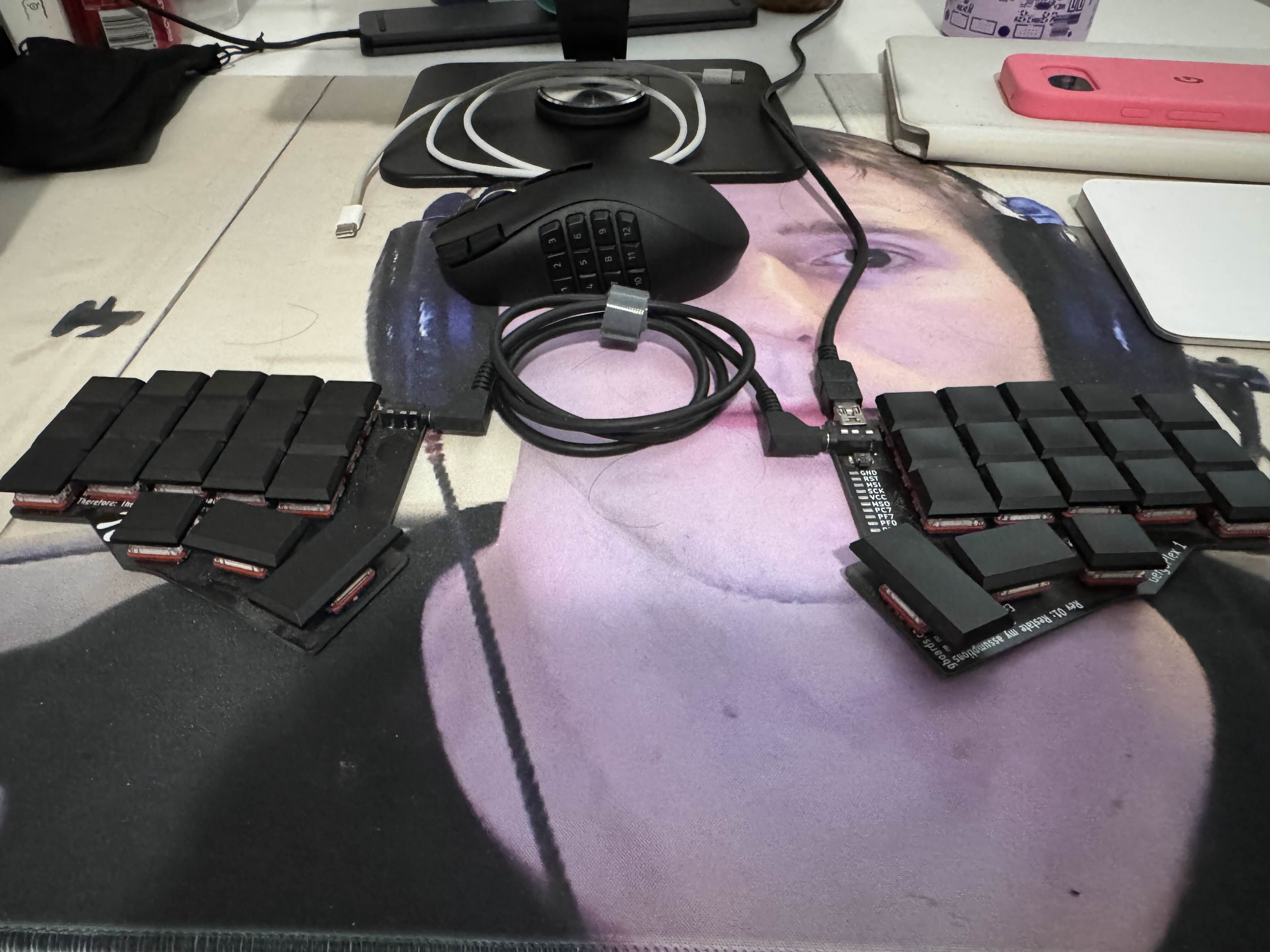
Earlier this year, I was finally sucked into Final Fantasy 14. I've been loving my time in it, but most of my playtime was on my gaming tower running Fedora. I knew that the game does support macOS, and I did get it working on my MacBook for travel, but there was one problem: I wasn't able to get my bars working with mouse and keyboard.
Final Fantasy 14 has a ridiculous level of customization. Every UI element can be moved and resized freely. Every action your player character can take is either bindable to arbitrary keybinds or able to be put in hotbars. Here's my hotbars for White Mage:
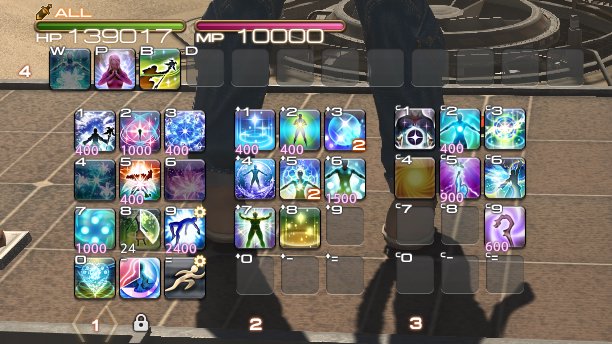
My bars have three "layers" to them:
- The "base layer" where pressing the 1 key on the mouse gets me the spell lableled "1", etc.
- The "shift layer" where holding the z key on my keyboard gets me the spell labeled "+1", etc.
- The "control layer" where holding the a key on my keyboard gets me the spell labeled "c1", etc.
I have things optimized so that the most common actions I need to do are on the base layer. This includes spells like my single target / area of effect healing spells and my burst / damage over time spells. However, critical things like health regeneration, panic button burst healing, shields, and status dispelling are all in the shift and control layers. When I don't have instinctive access to these spells with button combos, I have to manually click on the buttons. This sucks.
I ended up fixing this by installing Karabiner Elements, giving it access to the accessibility settings it needs, and enabling my mouse to be treated as a keyboard in its configuration UI.
There's some other keyboard hacks that I needed to do. My little split keyboard runs QMK, custom keyboard firmware written in C that has a stupid number of features. In order to get this layout working with FFXIV, I had to use a combination of the following features:
- Mod-tap so that pressing a gets me a, but holding a gets me control
- Combos so that pressing c and d at the same time gets me the enter key
Here is what my keymap looks like:
/* Keymap 0: Alpha layer / Colemak DHm
*
* ,-------------------------------.      ,-------------------------------.
* | ALT Q |  W  |  F  |  P  |  B  |      |  J  |  L  |  U  |  Y  |   ;   |
* |-------+-----+-----+-----+-----|      |-----+-----+-----+-----+-------|
* | CTRL A|  R  |  S  |  T  |  G  |      |  M  |  N  |  E  |  I  |CTRL O |
* |-------+-----+-----+-----+-----|      |-----+-----+-----+-----+-------|
* | SHFT Z|  X  |  C  |  D  |  V  |      |  K  |  H  |  <  |  >  |SHFT / |
* `-------------------------------'      `-------------------------------'
*   .------------------------------.    .--------------------------.
*   | ESC META | SPC ALT | BSP SPE |    | SPC NUM | SHFT ENT |  :  |
*   '------------------------------'    '--------------------------'
*/
I use the combination of this to also do programming. I've been doing a few full blown Anubis features via this keyboard such as log filters. I'm still not up to full programming speed with it, but I'm slowly internalizing the keymap and getting faster with practice.
Either way, Final Fantasy 14 is my comfort game and now I can play it on the go with all the buttons I could ever need. I hope this was interesting and I'm going to be publishing more of these little "how I did a thing" posts like this in the future. Let me know what you think about this!
Facts and circumstances may have changed since publication. Please contact me before jumping to conclusions if something seems wrong or unclear.
Tags: